Markdown Is Useful, But It Always Looks the Same
More and more people are using Markdown: writing notes, organizing documents, saving AI responses, drafting technical proposals... But have you ever noticed that all Markdown documents look pretty much the same: white background, black text, blue links, cookie-cutter.
The content is different, the purpose is different, and your mood is different—so why must the colors be the same?
With that in mind, mdview shipped a practical little feature in v1.0.85: Color Themes. It doesn't change a single word of your document—it just swaps the color palette of the rendered output. Headings, links, blockquotes, tables, and the table of contents instantly get their own personality.
8 Built-in Themes—There's Something for Everyone
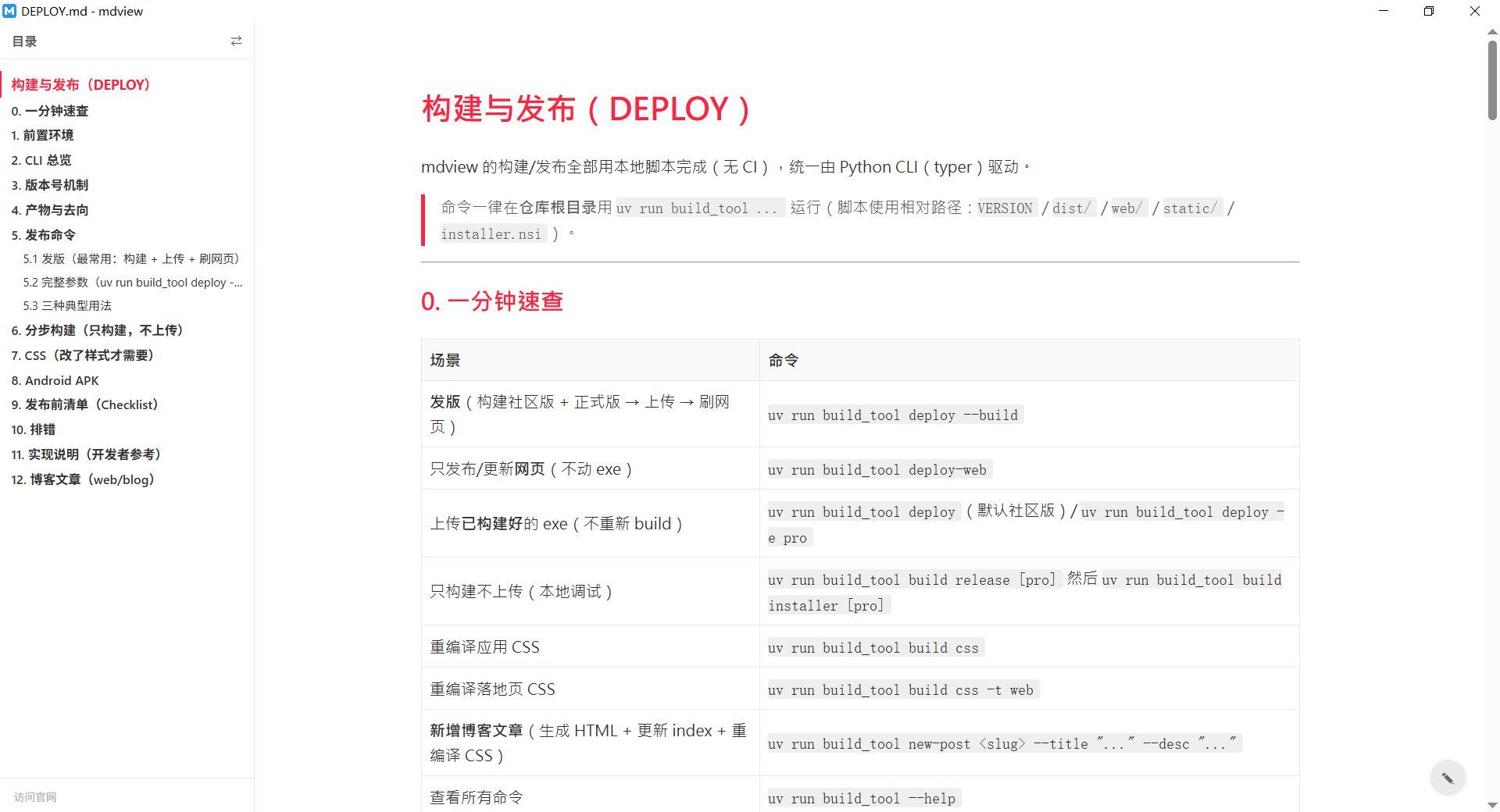
Color Themes ships with 8 carefully tuned palettes, plus the default classic, for a total of 9 choices:
| Theme | Style |
|---|---|
| Red | Brand-red headings and links on a clean white background—perfect for previewing before publishing |
| Tech | Orange headings on a warm cream background, easier on the eyes for long reading sessions |
| Pink | Soft pink palette on an off-white background—light and soothing |
| Rainbow | Purple headings, blue links, orange blockquotes—multiple colors in one document |
| GitHub | Replicates GitHub's classic blue—the flavor developers know best |
| Duolingo | Signature fresh green—clean and energetic |
| Linear | Indigo headings on a light gray background—the premium feel of modern tools |
| Notion | Notion's signature blue—a seamless experience for note-takers |
Each theme isn't just "a different heading color"—it's a complete tuning of the body background, headings, blockquotes, code block backgrounds, tables, links, and table of contents, ready to use out of the box.
How to Use It? Just Right-Click
The entire process takes no more than three steps:
- Right-click on the reading page and select "Color Themes" from the menu;
- The popup panel lists all themes—click any one and the entire document instantly switches to the new palette, what you see is what you get;
- Happy with it? Click "OK" to save. Don't like it? Click "Cancel" or press ESC to instantly revert.
Your choice is remembered: from then on, every .md file you open will automatically use your selected theme. To switch back, follow the same steps and choose "Default."
Thoughtful Details
- Only accent colors, not readability: Themes primarily affect H1/H2 headings, links, blockquotes, tables, and the table of contents. Body text always maintains high contrast—looks great without straining your eyes;
- TOC follows suit: The sidebar table of contents' borders, hover states, and current-section highlights all match the theme for a cohesive feel;
- Plays nice with dark mode: Color themes only apply in light mode; switching to dark mode takes over, and switching back restores your theme;
- Fully local, zero overhead: Theme palettes are built into the app—no network calls, no downloads, instant switching.
Suggestion: Match colors to your context—use "Tech" or "GitHub" for technical docs, "Notion" for organizing notes, and try "Pink" or "Rainbow" when you want something more relaxed. Changing themes costs just one right-click.
In Closing
The beauty of Markdown lies in the content itself, but the act of "reading" deserves a little ceremony too.
Color themes won't change your document, but they make every open a little more pleasing to the eye—which is exactly the kind of "practical little innovation" that a tool should have.
Upgrade to mdview v1.0.85, right-click and try "Color Themes"—give your Markdown some color.